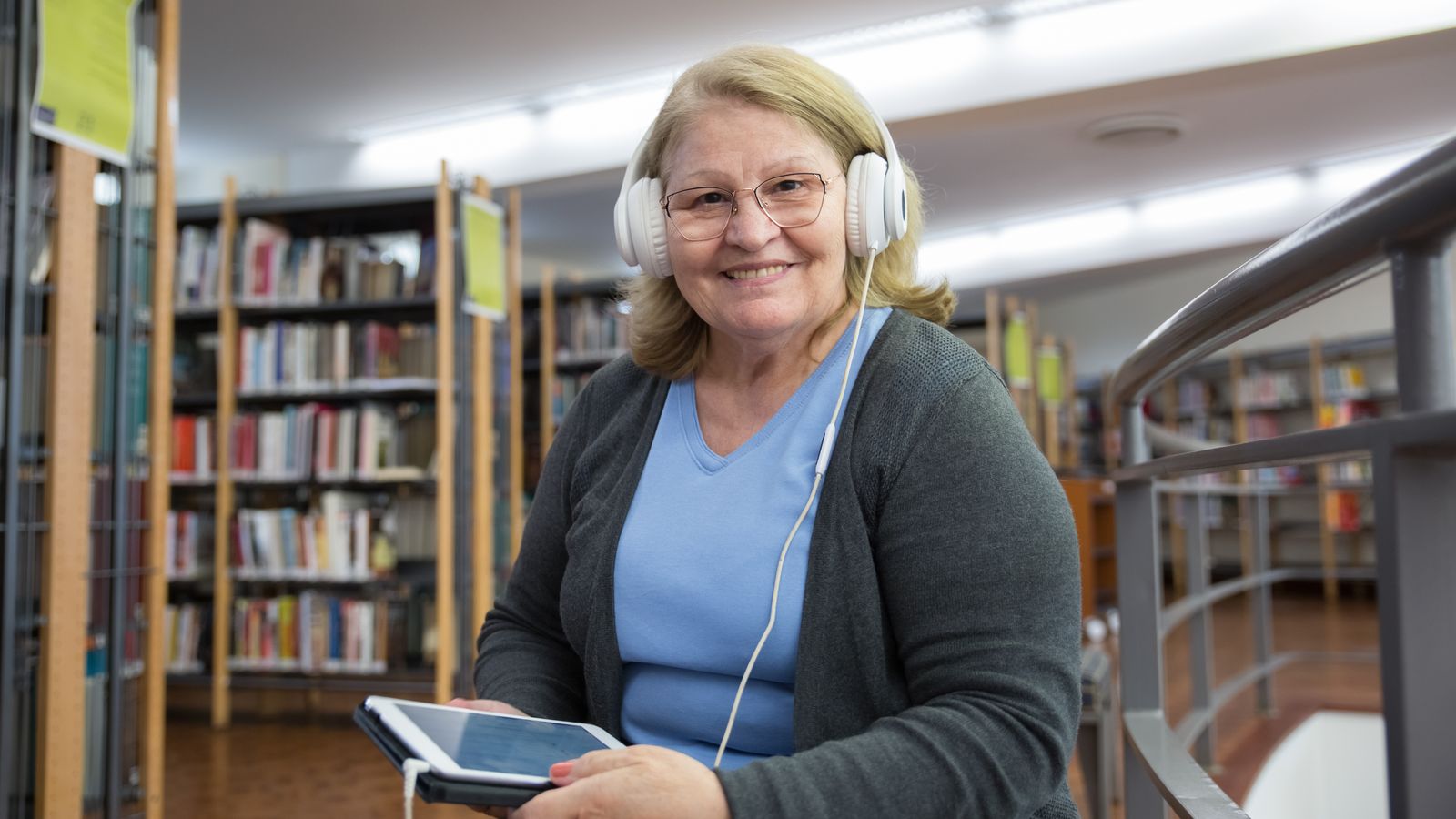
If you work in assisted living, you have a drawer somewhere with a tablet in it. Somebody bought it for video calls, or brain games, or a digital photo album, and it worked for about two weeks. Then a resident tapped the wrong corner and ended up in the settings menu, or the app wanted a password nobody remembered, or an update moved the button everyone had learned. Now it lives in the drawer.
That is not a story about older adults being bad with technology. It is a story about technology being designed for someone else.
Every extra button is a small tax on a tired mind. Seniors don't need technology made simpler. They need less of it on the screen.
“I just like to type in a phone number and call”
When I was a guest on The Aging Well Podcast, the host, Dr. Jeff Armstrong, said something every activity director has heard a hundred times. He is 63, sharp, a university professor, and he does not want the gadgetry.
“I don't like all of the gadgetry on my phone. I just like to type in a phone number and call. I don't like to hit a bunch of buttons. And I can imagine that for somebody in that frame of mind, when their mind starts to go, their cognitive skills are starting to decline, we don't want to put more burden on that declining cognitive skill.”
He is right, and it gets more true with every year of age and every diagnosis. Menus, icons, swipe gestures and pop-ups all ask the brain to hold a plan in working memory. That is exactly the faculty that goes first with fatigue, medication side effects, stroke and dementia.
What the body brings to the screen
Before choosing any app or device for a resident, it helps to list honestly what they are working with on a given day:
- Eyes. Macular degeneration, cataracts, glaucoma, or just glasses left on the nightstand. Small type and low-contrast gray text disappear.
- Hands. Arthritis, tremor and neuropathy make a precise tap or a swipe unreliable. Dry fingertips often do not register on a touchscreen at all.
- Ears. Hearing loss means audio prompts need to be clear, slow and loud enough, with a way to repeat them.
- Memory. Passwords, multi-step instructions, and “where was that button yesterday” are dealbreakers.
- Confidence. Many older adults are afraid of breaking something. One bad experience and they politely decline forever.
A tool that fails any one of these will end up in the drawer.
Five rules for technology older adults will actually use
- One action per screen. Not a home screen of tiles. One large, obvious thing to do.
- Read everything aloud. If a person cannot read the screen, the screen should talk.
- No passwords, no accounts, no app store. Staff or family should set it up once, and the resident should never see a login box.
- Nothing can go wrong. No way to wander into settings, delete something, or get stuck. Skipping is always allowed.
- It should work with no hands at all. Voice in, voice out, moving on by itself, with a person nearby who can help.
How we built Porchlight around those rules
Porchlight asks residents about their lives and records the answers, so it had to work for the oldest, frailest person in the building, not the most tech-savvy. Here is how I described the design on the show:
“As people get older, they simply need an incredibly simple user interface that would allow them to communicate with the app. So I've made it really as simple as possible. You can skip any question. It reads the questions to you.”
In practice that means:
- One big button. The resident screen is large type and one main control. Tap, hear a question about your life read aloud in a warm voice, and talk for as long as you like.
- The questions go in a fixed, gentle order. They start low key and easy, from a curated life-story set, and any question can be skipped. AI does not choose the questions or ask follow-ups.
- It moves on by itself. After a resident finishes a story and goes quiet for a few seconds, a short countdown appears and the next question is read out. If they start talking again, the countdown cancels. The pause is longer for residents whose stage setting is middle or later, and staff can turn auto-advance off for any resident.
- Hands-free and sit-together modes. In hands-free mode, a staff member taps Start and the resident only talks; the session ends itself after a few stories. In sit-together mode, a care partner or relative reads or rephrases the questions and decides when to move on, and their words are kept apart from the resident's.
- No passwords, no app store. Each resident has a private link. Staff open it on any phone or tablet, usually from a QR code, and can save it to the home screen.
“Even if someone can't physically read their phone, even if they can't use their fingers themselves, even to push a skip button, I've added an auto advance feature.”
That matters because the people with the most interesting stories are often the ones least able to tap a screen. A retired machinist with severe arthritis, a former teacher with low vision, a woman who never owned a smartphone. A design built around voice lets all of them take part.
“That kind of accessibility is really essential because as people age they do lose various faculties, and so it's very important for them to be able to use our app no matter what.”
As heard on The Aging Well Podcast
Dr. Jeff Armstrong and I spent a good part of episode 499, “The Stories That Make Us: Why Being Known Matters as We Age,” on why simplicity is the whole design. There is also a short clip, “Simplifying Tech for Aging Adults.” Episode notes and highlights · Watch the full episode · Watch the clip
A setup checklist for caregivers
Whatever tool you choose, a few minutes of setup decide whether it gets used:
- Use a device the building already has. An ordinary tablet or a spare phone is fine. Save the one page the resident needs to the home screen and hide or remove the rest.
- Turn the volume and text size up before you hand it over. Test it from where the resident will actually sit.
- Keep it charged in the same place. A tablet on a stand by the favorite chair gets used. A tablet in a drawer does not.
- Start the first session together. Sit down, tap Start, and stay for the first question or two. Confidence comes from one easy success.
- Pick the right moment. Mid-morning after breakfast often works better than late afternoon, when many residents are tired.
- Let family help. A son or daughter on a visit is often the best person to sit beside a parent and get the first stories going.
Why simple wins for the staff too
The hidden cost of complicated technology falls on caregivers. Every login reset, every “it's doing something weird,” every walk down the hall to fix a tablet is time not spent with residents. A one-button tool with nothing to break is the only kind a busy floor can support for more than a month.
And when the tool is a life-story recorder, simple also pays off downstream. With Porchlight, what the resident says becomes a one-screen Know Your Resident briefing and printable cards for staff, a weekly Monday digest of story highlights for the activity director, and a private page where family can listen, download, and leave voice-note replies. None of that happens if the resident never presses the button.
Porchlight is a conversation and enrichment tool, not a medical device or a treatment. Its job is to make it easy for a resident to be heard, and easy for the people around them to listen.
See the one-button screen for yourself
Open the live demo on any phone or tablet and hear how a resident session works.
Explore a live demo Book a demoSources & notes
- Quotes are from Patrick Donahue's and Dr. Jeff Armstrong's conversation on The Aging Well Podcast, episode 499, lightly trimmed of filler words. Timestamps link to the full episode on YouTube.
- The setup checklist reflects general caregiving practice for older adults with low vision, limited dexterity or cognitive impairment; individual needs vary, and an occupational therapist can advise on a specific resident.
Resident examples in this article are illustrative, not real individuals. Porchlight does not fabricate customers, testimonials, or outcome metrics.